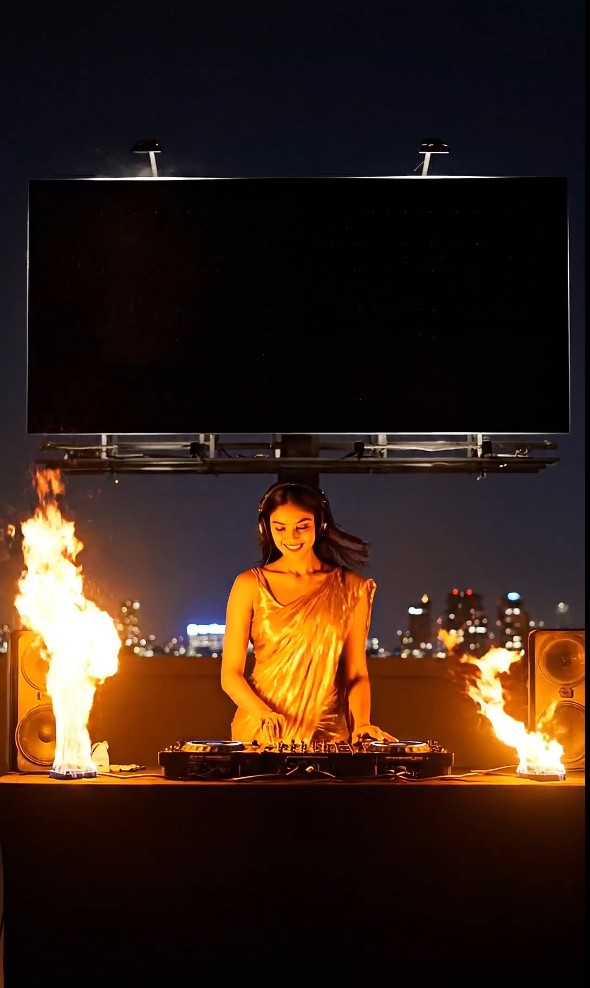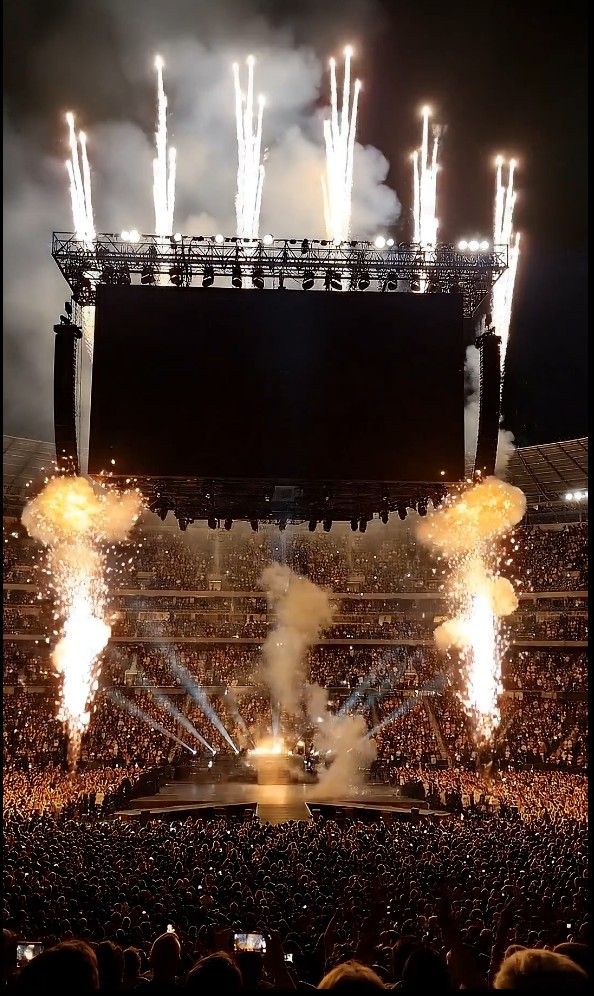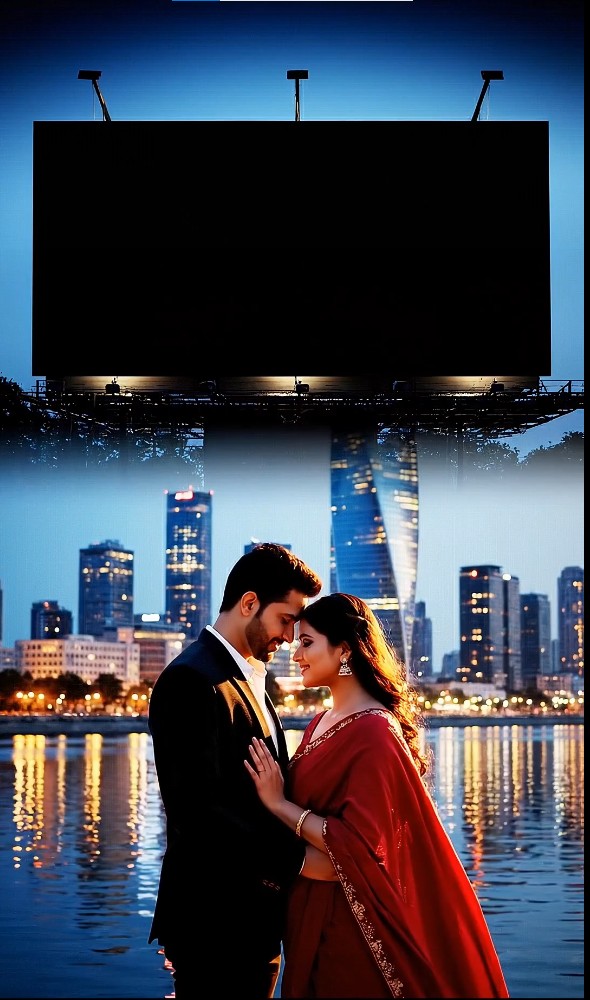

How to Share a Personalized Vertical Video on Instagram Reels
Personalize this share vertical video on instagram reels with any name (max 10 chars). Render Full HD 1080x1920 vertical video in 60 seconds for WhatsApp &
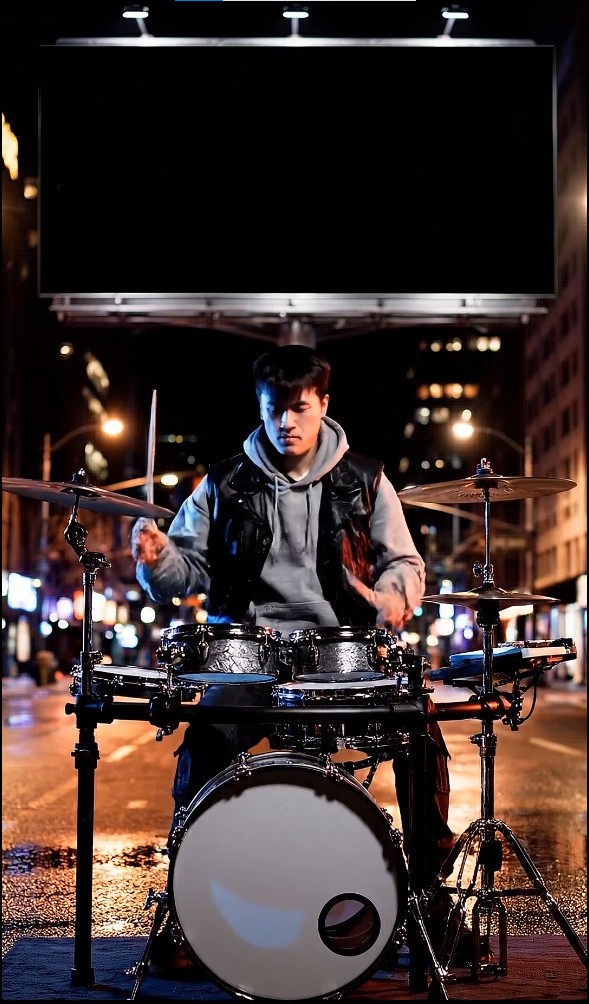
How to Share a Personalized Vertical Video on Instagram Reels
- Personalize this share vertical video on instagram reels with any name (max 10 chars). Render Full HD 1080x1920 vertical video in 60 seconds for WhatsApp & With MakeMyMsg, you select a scene template and enter a single recipient name or short phrase (up to 10 characters) to render a crisp 1080x1920 vertical MP4 video in roughly 60 seconds for WhatsApp, Instagram Reels, or TikTok.
How to Share a Personalized Vertical Video on Instagram Reels
Instagram Reels rewards clips that look sharp in the first second and fit the vertical phone screen naturally. Whether you are posting a birthday shoutout for a friend, a rider crew highlight, or a short creator opener, starting with a clean 1080x1920 MP4 saves you from awkward zoom-ins and blurry borders. Here is how to prepare and share a MakeMyMsg video on Reels without fighting formatting issues.
Matching MakeMyMsg Output to Instagram Reels Technical Specs
- Instagram Reels is built around a 9:16 vertical aspect ratio at 1080x1920 pixels. All 24 active templates on MakeMyMsg render directly at 1080x1920 Full HD MP4 in roughly 60 seconds, so there is no need to crop, rotate, or re-encode the file before uploading. Because the lighting, color grading, and motion paths are pre-rendered, you avoid the washed-out look that often happens when stacking multiple mobile filter apps.
Safe Zones: Keeping Your 10-Character Text Clear of Reels Icons
- On Instagram Reels, the right edge holds the Like, Comment, and Share icons, while the bottom strip displays your username and caption. If a video pushes text too close to those borders, Instagram's interface covers it up. MakeMyMsg templates position your single custom text input (maximum 10 characters) inside a central safe area designed for mobile readability.
Short, clean text works best in fast-scrolling Reels feeds. Creator handles like `DJ Kai`, rider tags like `R1 Crew`, or birthday names like `Maya` and `Alex 21` register instantly. Avoid cramming extra symbols or long abbreviations into the 10-character field — save hashtags, @mentions, and personal notes for the Instagram caption box below the video.
Step-by-Step Sharing Workflow on Mobile
- Start by selecting a collection that matches your Reel's mood: [Signature](/templates/signature) for creator intros ([Midnight Rhythm](/templates/midnight_rhythm), [Skyline Fireworks](/templates/skyline_fireworks_signature)), [Rider Videos](/templates/rider-videos) for motorcycle and car reels, or [Entry Moments](/templates/entry-moments) for dramatic reveals like [Midnight Supercar](/templates/midnight_supercar). Enter your 10-character text, inspect the live preview, and render your MP4 in about 60 seconds.
Save the MP4 directly to your phone's camera roll. Open Instagram, tap the plus (+) button, choose Reel, and select the downloaded MP4 from your gallery. On the preview screen, check the cover frame you want shown on your profile grid — you can pick the exact moment where the name reveal is brightest so the thumbnail looks clean on your grid. Add your caption, tag the person you are celebrating, and publish.
Practical Limitations and Best Uses for Reels
- It helps to understand where MakeMyMsg fits in your workflow. MakeMyMsg is not a multi-track timeline editor or a talking-head AI avatar tool; each template gives you one focused vertical scene with fixed motion and a single 10-character text slot. Many creators use a MakeMyMsg clip either as a standalone birthday/celebration Reel or as a crisp opening hook inside Instagram's Reels composer followed by their own phone footage.
- Before uploading, enable High-Quality Uploads inside Instagram's Media Quality settings so your 1080x1920 render stays sharp over cellular connections. To compare all 8 collections before rendering your next Reel, browse [All 24 Templates](/templates) or read [How It Works](/how-it-works).
Picking a Profile Grid Cover Frame and Caption That Work Together
Instagram crops Reels covers to a tighter vertical rectangle on your main profile grid. When you tap Edit Cover on the Instagram publishing screen, scrub forward to the exact moment the MakeMyMsg name reveal is fully lit and centered, then tap Profile Grid to confirm the lettering sits cleanly inside the center crop. That prevents your grid from showing a dark opening frame before the text appears.
- Your caption should complement the short on-screen text rather than repeat it word for word. If your [Midnight Rhythm](/templates/midnight_rhythm) Reel displays `DJ Kai` or your [Stadium Big Screen](/templates/stadium_big_screen) Reel displays `Happy 30!`, use the first two lines of the Instagram caption to share the personal story, thank friends, or tag the person you are celebrating. Keep hashtag blocks modest and relevant so the post reads like a real human moment rather than spam.
Troubleshooting Blurry Reels Exports
If an uploaded Reel ever looks softer than the downloaded MakeMyMsg MP4, check three common culprits: uploading over weak mobile data with Instagram's Data Saver turned on, re-exporting the clip through a third-party watermark app before posting, or screen-recording the preview instead of using the downloaded 1080x1920 MP4. Always upload the original MakeMyMsg file directly on Wi-Fi with High-Quality Uploads enabled so the lighting and 10-character typography stay razor-sharp.
- If you are sharing a birthday or anniversary Reel for someone specific, you can also send the exact same 1080x1920 MP4 privately via Instagram Direct Message or WhatsApp right before posting publicly. That way they get to keep a clean, uncompressed personal copy on their phone while friends can comment and react on the Reel. Because MakeMyMsg renders each template in roughly 60 seconds, you can even render a second scene from [All 24 Templates](/templates) if you want a separate Story teaser.
Explore Personalized Video Templates
- Ready to turn this guide into a finished clip? Start with Signature Templates or Rider Videos or All 24 Templates to customize a scene with up to 10 characters in under 60 seconds.